Love Letter to the Claude Code Docs
2026-03-17
5 minute read
Tips from the Docs that Changed How I Work
I only started using Claude Code recently. Last month, I decided to kick the tires with the $20 subscription. Four days later I was paying $200. By the end of the week, I'd put in dozens of hours.
After a few weeks of use I decided to read the Claude Code Docs. They took something I was already having fun with and made it even better. Reading the docs is a lot to ask of anyone so I wanted to pull out my top lessons and bring them back to the mortal realm.
This is for folks who've used Claude Code for a couple weeks. If you're just starting, go have fun without any fanciness first. If you'd like a boost after knowing the basics, this is for you.
Customize your status line is the best way to get a passive boost to Claude Code without having to do anything else. It's so effective, I'm surprised they haven't built one into the product already.
You can see my status line at the bottom of this image:
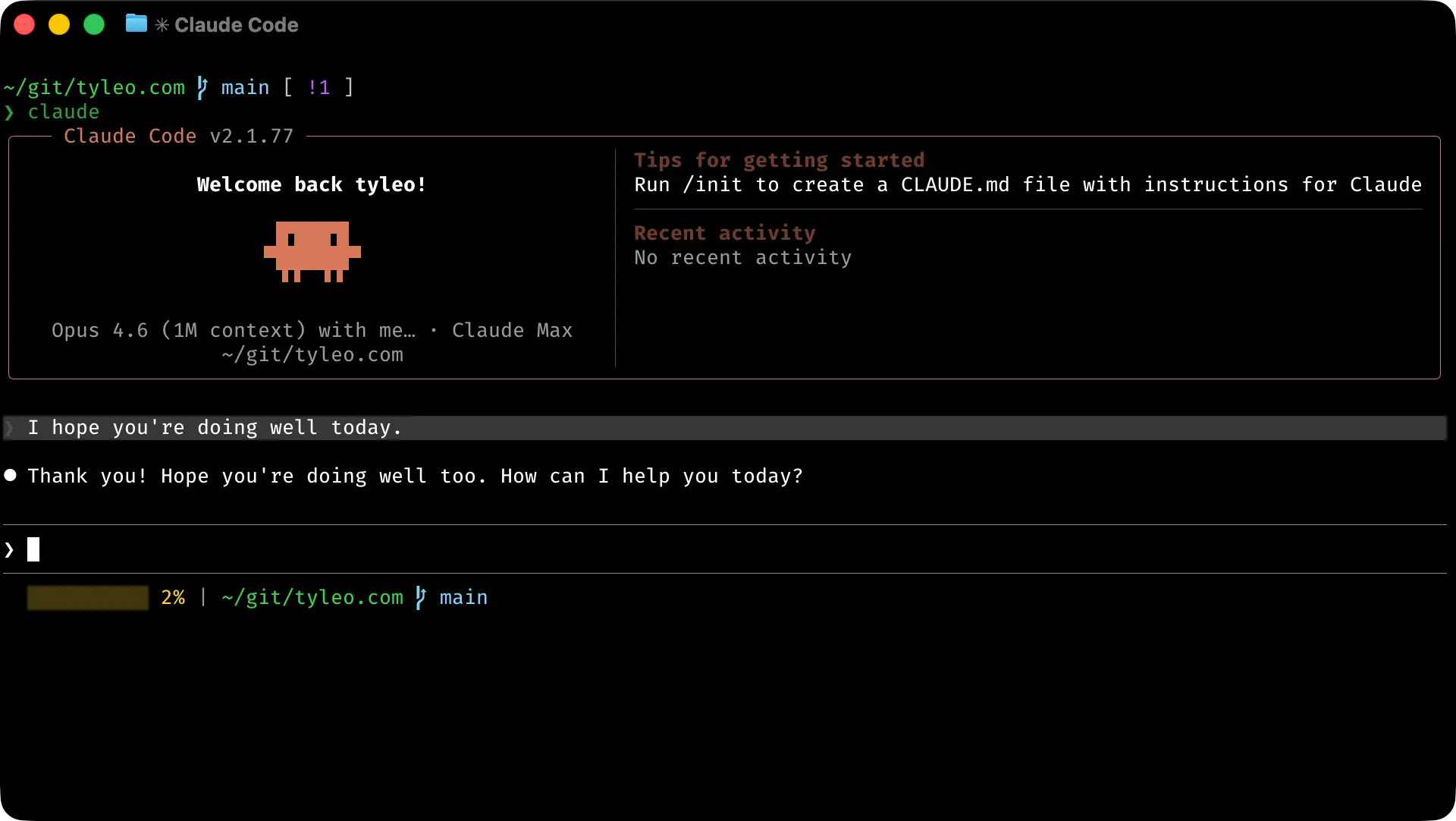
The status line is configurable via the "statusLine" property of "~/.claude/settings.json". To customize it deeply, I'd refer to the docs. If you'd like Claude's help customizing it, you can use /status-line in Claude Code and ask for what you want.
The context bar in my status line feels like one of the missing features of Claude Code. Without it, there's no way to determine how much context rot I'm likely to experience.
"~/.claude/settings.json":
123456
{"statusLine": {"type": "command","command": "sh ~/.claude/status-line.sh"}}
"~/.claude/status-line.sh":
1234567891011121314151617181920212223242526272829303132333435363738394041424344
#!/bin/bash# Claude Code status line# Format: CCCCCCCCCC ##% | ~/git/star-shift branch-nameinput=$(cat)cwd=$(echo "$input" | jq -r '.workspace.current_dir // .cwd')YELLOW=$'\033[93m'GREEN=$'\033[92m'BLUE=$'\033[96m'RESET=$'\033[0m'# Context barused_pct=$(echo "$input" | jq -r '.context_window.used_percentage // empty')if [ -n "$used_pct" ]; thenpct_int=$(printf "%.0f" "$used_pct")bar_filled=$(( pct_int / 10 ))bar_empty=$(( 10 - bar_filled ))bar=""i=0while [ $i -lt $bar_filled ]; dobar="${bar}▓"i=$(( i + 1 ))donei=0while [ $i -lt $bar_empty ]; dobar="${bar}░"i=$(( i + 1 ))donecontext_part="${YELLOW}${bar} ${pct_int}%${RESET}"elsecontext_part="${YELLOW}░░░░░░░░░░ 00%${RESET}"fi# Directoryhome="$HOME"display_dir=$(echo "$cwd" | sed "s|^$home|~|")# Git branch (skip optional locks to avoid contention)branch_part=""if git -C "$cwd" -c core.fsmonitor= rev-parse --git-dir >/dev/null 2>&1; thenbranch=$(git -C "$cwd" -c core.fsmonitor= symbolic-ref --short HEAD 2>/dev/null \|| git -C "$cwd" -c core.fsmonitor= rev-parse --short HEAD 2>/dev/null)if [ -n "$branch" ]; thenbranch_icon=$(printf '\xee\x82\xa0')branch_part=" ${BLUE}${branch_icon} ${branch}${RESET}"fifiecho "${context_part} | ${GREEN}${display_dir}${RESET}${branch_part}"
Anthropic provides a guide for writing good prompts that has some great tips. While this is outside the core Claude Code docs, the tips still apply. My major takeaways from the prompting best practices are:
- Put your context before your tasks.
- Format your prompts with XML.
I like to keep these tips in-mind rather than using them every prompt. Generally I'll pull them out with plan mode when I want Claude to make larger changes. Better prompts are also effective when working on larger codebases than when working on small projects. I find myself using this pattern a lot more often on our 6M+ line codebase at work.
Here's an example of a prompt I wrote like this while building my game, Star Shift:
<context>
<problem>@Entities/MainShip.cs can pass through @Entities/PatrolShip.cs.</problem>
<cause>
- @Entities/MainShip.cs is updated first, moving and depenetrating.
- @Entities/PatrolShip.cs is updated later using the stale pose.
- Updates happen in @SphereShooter/SphereShooterFixedUpdateLogic.cs.
</cause>
</context>

<task>
- Cache rigid body poses at the top of @SphereShooter/SphereShooterFixedUpdateLogic.cs.
- Store poses in a new @IdSys/IdField.cs mapping rigid body id to pose.
- Use cached poses at intermediate points like
- CalculateDepenetrationPosition in @Game.Unity/UnityGameEngine.IColliderOps.cs.
- Apply final rigid body moves at the end of the frame.
</task>
Context is the key resource in Claude Code. LLM performance degrades as the context window fills so Claude may forget earlier instructions or make mistakes.
Even with the fancy new 1M token context window, performance degrades at the same absolute token thresholds: filling 90K tokens causes the same degradation whether you have 100K or 1M total budget.
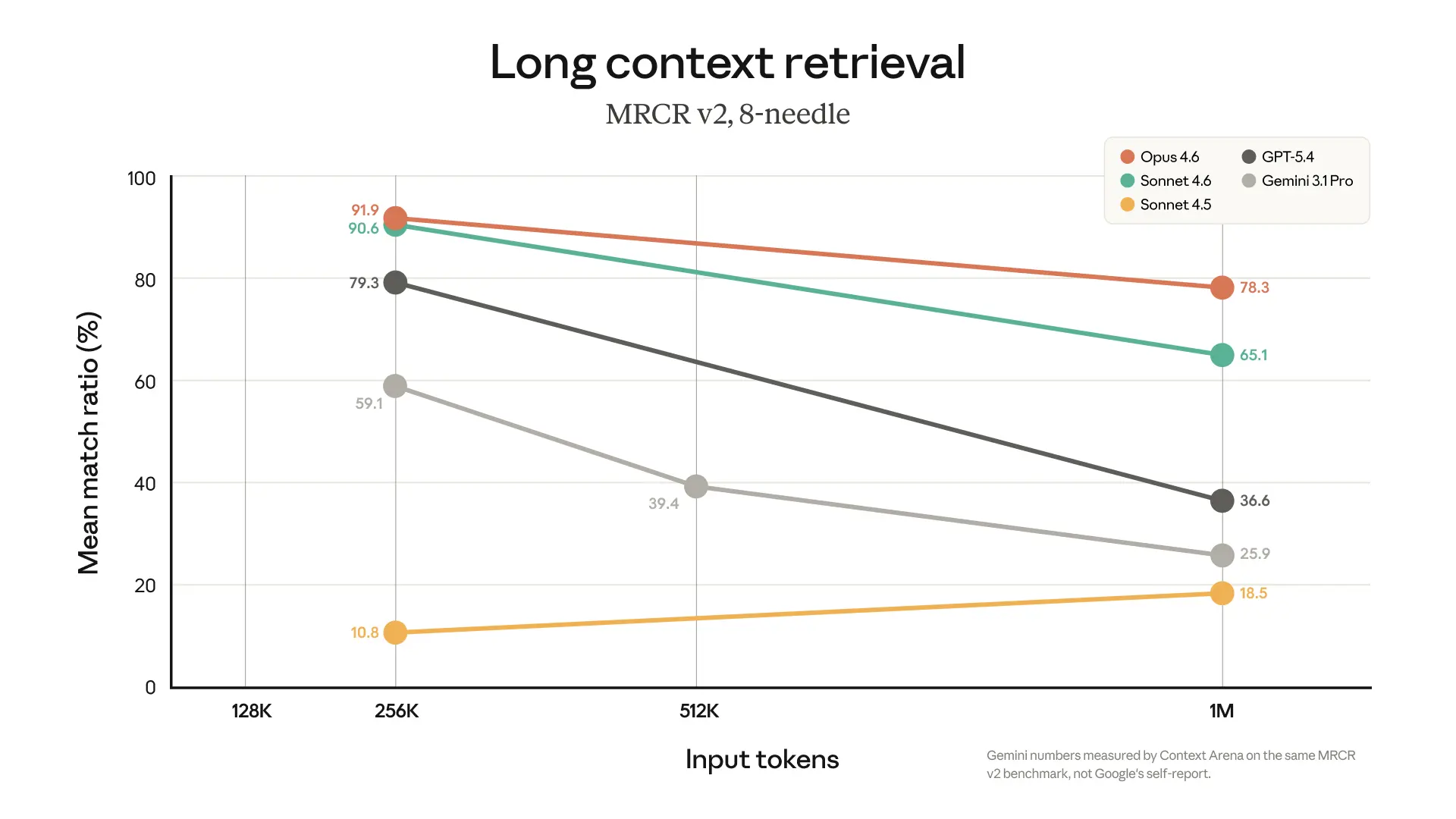
Claude Code provides three commands for managing context directly /context, /clear, and /compact.
These commands pair well with the first tip about customizing your status line, so be sure to check it out. With Opus 4.6, I tend to consider running them whenever I've used more than 100K tokens.
The /context command gives you a visual breakdown of what's filling your context window. It's great for understanding where to optimize your token use at a high level:
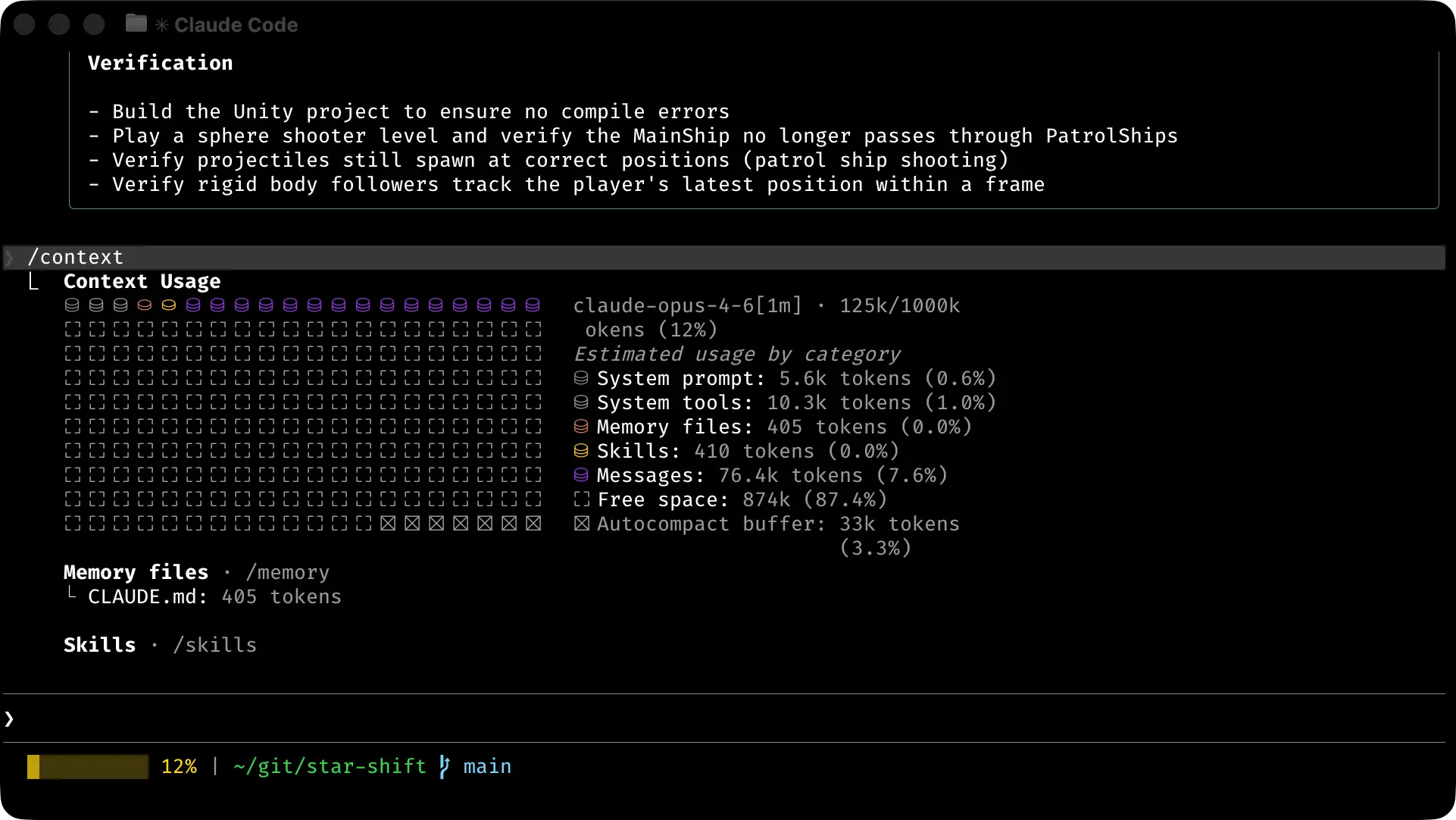
The /clear command resets your context window. This is similar to opening a new conversation in ChatGPT or the Claude app. Just like you wouldn't use a single long-running conversation in the chatbot apps, you shouldn't use a single long-running context window in Claude Code.
The /compact command clears tool outputs and summarizes the conversation. This command runs automatically as you approach the end of the context window. However, you can also run it with "Compact Instructions" which describe what you'd like to preserve /compact focus on the API changes
CLAUDE.md files provide project/directory context to Claude. Unfortunately, the visible hierarchy of CLAUDE.md files is loaded at the top of every context window. If your CLAUDE.md file is large, it may be polluting your context with useless information.
The Claude Code docs recommend targeting 200 lines per CLAUDE.md file. I tend to delete the CLAUDE.md files my organization checks in locally and keep separate "/docs/*.md" files that I manually pull in as context.
Since context is your key resource, I hate to squander unnecessary information on prompts that don't demand it. For example, I don't like to fill Claude's context with build or style instructions when I'm exploring the repository to learn. When I do need them, my workflow looks like placing "@docs/style" at the top of a prompt.
Skills, LSP servers, MCP servers, there's so much you need to know to bring Claude Code online!.. Or maybe not? After 4 weeks of daily use, I've written one skill, and still haven't touched an LSP or MCP. If your workflow is API-heavy or you need live data, MCP probably earns its context cost. But for my code work, I've found that good prompts cover a lot of ground.
I might be missing something, but another tool isn't always the answer. Instead, I've leveraged "context" or "docs" directories which I include with @-directives for specific knowledge. Using this pattern, you can even use index files that link to other files to pull in larger chunks of context at once. Remember "context is the key resource".
Subagents get their own context window, separate from your main conversation. The Claude Code docs provide a guide to create custom subagents, but persistent agents are another tool that can fill context.
Instead of defining persistent agents, you can prompt Claude to spin them up on the fly. The docs specifically recommend this approach for running investigations.
I've found this works especially well in large codebases. To run an investigation in Rec Room, a 6M+ C# codebase, I might do something like this:
<context>
<scenario>We are adding new purchasable items for players in Rec Room. I'd like you to run an investigation with 2 subagents and then come up with a plan.</scenario>
<agent_1>Investigate how the econ API is currently called in the codebase.</agent_1>
<agent_2>Investigate how player item ownership works in the inventory system.</agent_2>
</context>

<task>
Based on your findings, recommend a concrete update to the econ API that supports selling items to players in Rec Room.
</task>
Sessions are similar to conversations in the ChatGPT or Claude chatbot apps. They have their own context and can be resumed and reviewed at a later time. The difference is that Claude Code lives in a terminal, so there's no sidebar to scroll. You manage sessions with commands instead.
The workflow I've settled into starts with /rename. Whenever I'm about to close Claude Code or leave my desk, I ask myself, "should I rename this session for later?" If I've built up useful context during a run of work, a descriptive name makes it easy to find again with /resume, which opens an interactive picker for browsing past sessions.
/fork-session creates a new session from your current history so you can branch off without losing the original. I use this after running investigations with subagents. Once the investigation is done, I /rename the session, then /fork-session for each change I want to make from that shared starting point. Forked sessions even appear grouped together in the /resume picker, which keeps things clean.
Finally, /rewind restores a session to a previous state and optionally reverts your files. It's a safety net for when you forget to /fork-session or just want to get back to a previous state.
Just like the status line, you can replace the default @-mention file search with a custom script. I've found that the built in file search doesn't always sort results in the way I'd expect so I've replaced mine with one that calls jq, rg (ripgrep), and fzf.
I've had mixed results. On my M4 Mac with a fast SSD, I've seen great improvements, even on 6M+ line codebases. On my top-of-the-line Windows desktop, the customizations bring the machine to its knees. I went back to defaults on Windows, but it's worth experimenting since your mileage will depend on your machine, project size, and time you put into the script.
You can find my settings tucked away here if you'd like to try them out:
"~/.claude/settings.json":
123456
{"fileSuggestion": {"type": "command","command": "sh ~/.claude/file-suggestion.sh"}}
"~/.claude/file-suggestion.sh":
1234567
#!/bin/bashQUERY=$(jq -r '.query // ""')PROJECT_DIR="${CLAUDE_PROJECT_DIR:-.}"cd "$PROJECT_DIR" || exit 1{rg --files --follow . 2>/dev/null} | sort -u | fzf --filter "$QUERY" | head -15
Install:
brew install jq ripgrep fzf
Claude Code can do anything you can do from your command-line. That means every script you write becomes a capability for Claude too. Some teams give Claude Code access to analytics so it can run queries, some let it prepare Google docs, others connect it to Jira.
I like to turn operations I perform frequently into command-line utilities over time. For personal games I'm doing this with my tyt project. At Rec Room, I built an rr command-line tool where we ran this pattern across a whole company.
Keep in mind that too many tools can pollute your context, so focus on the operations you actually repeat and include them on a per-project basis.
If you have one takeaway it's that context is everything. The status line gives you visibility, good prompts build it, /clear and /compact reclaim it, and hygienic tool use conserves it. Most of these tips build on that core idea: context is the key resource.
The Claude Code docs are genuinely worth the read if you want to go deeper than what I've covered here. There's a lot I left out, but these are the changes that shifted how I work day-to-day. If you'd like to get started, check out that status line. You'll be surprised how much changes when you can see your context in real time.